Tags And Knowing When To Use A Tool
A tag is a branch that cannot move. And after a whole series insisting you resolve conflicts by hand, here is the case for putting a tool back in front of them.
Worktrees were the last workflow change. Two smaller things remain, and the second one contradicts something this series has been insisting on.
A Tag Is a Named Location
The clearest way to describe a tag: it is everything a branch is, minus the ability to change.
A branch moves. You commit, and it advances to the new commit. That is its job.
A tag does not move. It marks a point in history and stays there. Commit all you like, the tag stays where you put it.
Which is exactly what you want for a release. v1.0 should mean one specific state of the code, permanently. A pointer that drifts every time someone commits would be useless for that.
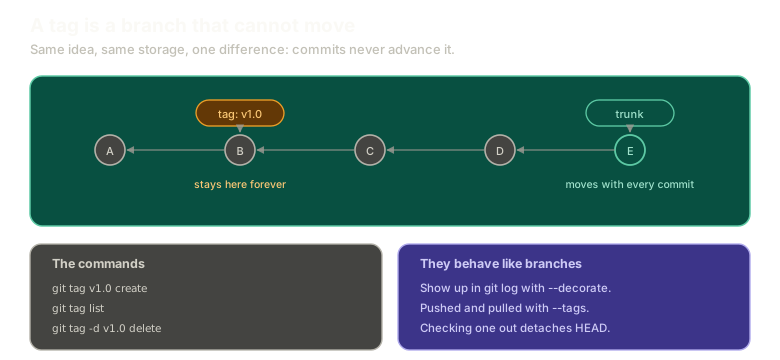 ExpandA commit chain where the tag v1.0 sits fixed on commit B while the branch trunk advances to commit E, illustrating that tags mark a permanent point while branches move with every commit.
The Commands
There is not much to learn, and that is the point:
git tag v1.0
git tag
git tag -d v1.0
Create, list, delete. Nothing surprising.
Checking one out works too:
git checkout v1.0That puts you in detached HEAD, and you already know why. A tag names a commit, not a branch, so HEAD has no branch to point at and holds the SHA directly.
They Behave Like Branches Everywhere Else
Once created, tags show up in the places you would expect.
They appear in the log, since --decorate prints ref names and a tag is a ref:
git log --oneline --decorateHandy when you are looking for where a specific version sits.
And they move between repositories, though not automatically:
git push --tags
git pull --tags
Tags are not pushed by a normal push. You ask for them explicitly. That surprises people the first time a release tag does not show up on the server.
That is genuinely all there is. If branches make sense, tags already make sense, minus the movement.
Now the Contradiction
This series has been firm about doing things by hand. No editor plugin for conflicts, no git panel, terminal only.
I stand by that for learning, and I want to be honest about the other side.
Diffs are not enjoyable to read in a terminal. Neither are conflicts. Nobody actually wants to resolve a three-way conflict by reading marker text in a pager, and pretending otherwise would be posturing.
What you want, in the moment, is one version on the left, the other on the right, an editable result in the middle, and the ability to take a hunk from either side with one keystroke. That is what merge tools are for, and they are genuinely good at it.
Why by Hand First, Then
The order matters, and it is the whole argument.
Learn it by hand so you understand what the tool is doing. Then use the tool.
Every git tool is a wrapper. Click a button and it runs the same commands you have been typing all series. If you learn the wrapper first, you learn a UI. If you learn the commands first, you learn git, and every tool becomes readable because you know what is underneath.
The specific things this series would have hidden from you if a tool had been in the way:
- That HEAD means the other branch during a rebase. A three-panel view labels the sides for you, and you never notice the inversion, so you never learn why it happens.
- That resolving toward the wrong side silently discards your own commit.
- That deleting the markers does not resolve anything.
None of those are visible from a button.
So: learn the tool. Whichever editor you use has a good one, and getting fluent with it will save you real time. Just do it in that order.
In VS Code that is usually GitLens. In Vim it is Fugitive, which puts staging, committing, pushing, stashing, and interactive rebase behind a couple of keystrokes each. Both are wrappers over the commands in this series, which is precisely why they are worth reaching for now and would have been worth avoiding twenty posts ago.
What This Sets Up
That is the technical material. What is left is the handful of practical questions that come up once you are using git seriously with other people.
Next: the last few things about git, including large files, environment files, and an ignore file only you can see.
The Essentials
- A tag is an immutable point in history, everything a branch is except moveable.
git tag <name>creates,git taglists,git tag -ddeletes.- Checking out a tag detaches HEAD, because a tag names a commit rather than a branch.
- Tags appear in the log alongside branch names.
- Tags are not pushed by default. Use
--tagson push and pull. - Terminal diffs and conflicts are genuinely unpleasant, and a good merge tool is worth learning.
- Learn it by hand first, because every tool is a wrapper over the commands, and the wrapper hides the parts that matter.
Further Reading and Watching
- Git Tags || Annotated Tags vs Lightweight Tags: the two kinds of tag and what the difference means in practice.
- Tagging: the Pro Git chapter, including tagging a commit after the fact and sharing tags with a remote.
Keep reading