Worktrees Are The Answer To Stashing
You are in flow, and production breaks. Stashing is the usual answer and nobody enjoys it. A second working tree means you never have to put anything down.
Reset covered undoing things. This one is about not having to.
Picture the situation. You are deep in a feature branch, everything is going well, and someone needs a fix on main right now.
What you do next is stash everything, switch branches, fix, switch back, pop. Or commit half-finished work you did not want to commit.
Neither is pleasant. There is a third option that removes the problem instead of managing it.
What a Worktree Is
The full term is linked working tree, and the distinction matters.
Your main working tree is the one git init or git clone created. A linked working tree is a second directory, checked out to a different branch, sharing the same repository.
Two folders. Two branches checked out at the same time. One object store.
This works for a reason established right at the start of the series: a single commit can rebuild the entire project. A second working tree is just a second checkout of a different commit, and the objects are already there.
Make One
cd hello-git
git worktree add ../foo-bar
Git creates the directory, creates a branch, and checks it out.
The branch name comes from the last part of the path. A path ending in foo-bar gives you a branch called foo-bar. You can name it explicitly if you want something different:
git worktree add ../review some-branchNow go look:
cd ../foo-bar
git log --oneline
All your history is here. Same commits, same repository, different branch checked out.
The .git File
Here is the detail that makes it click.
cat .gitIt is a file, not a directory. One line, pointing back at the main working tree.
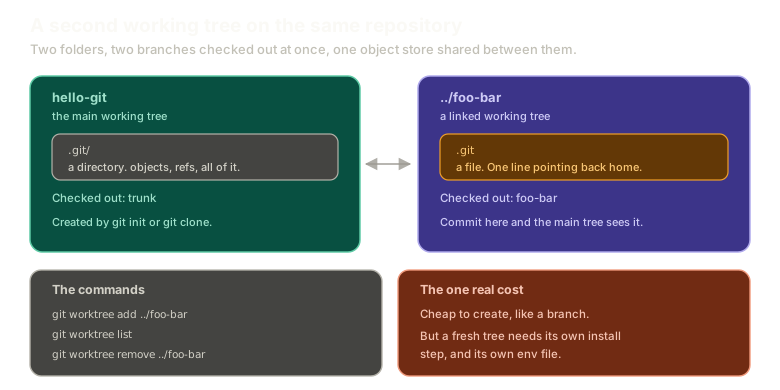 ExpandThe main working tree hello-git holding a .git directory with all objects and refs, alongside a linked working tree at ../foo-bar whose .git is a single-line file pointing back home, with both checked out to different branches.
That is the whole mechanism. The linked tree has no object store of its own. It borrows the main one and keeps only enough state to know which branch it is on.
Which is why creating one is cheap. No objects are copied. It costs about what a branch costs, plus the files in your working directory.
They Share Everything
Commit in the linked tree, then go look from the main one:
cd ../foo-bar
echo "work" > foo.md
git add foo.md
git commit -m "some work"

cd ../hello-git
git log foo-bar --oneline
Your commit is right there. Same repository, viewed through a different door.
That is what makes this a real workflow rather than a trick. You are not managing two copies that need syncing. There is one repository with two active checkouts.
The Workflow It Enables
Taken seriously, this changes how you work.
Branch switching becomes something you rarely do. Instead of one directory you keep changing the state of, you have a directory per line of work, each sitting in whatever state you left it.
Feature work in one. Main in another. An emergency arrives, you open the other folder, fix it, and go back. The feature branch never moved. Nothing was stashed, nothing was committed half-done, nothing was interrupted.
Stashing stops being something you need.
Listing and Removing
git worktree listYour main tree, plus every linked one, with the branch each is on.
Two ways to remove:
git worktree remove ../foo-barOr delete the folder yourself and tell git to catch up:
rm -rf ../foo-bar
git worktree prune
Interestingly, git worktree list notices a deleted folder before you prune, and marks it prunable. The main repository tracks its linked trees, under .git/worktrees, and it checks whether each one still exists.
The link runs both ways: the linked tree points home through its .git file, and home keeps a record of each linked tree.
Try the commands here:
Tools
Two working trees
Add a worktree for the feature branch and list your worktrees.
Type a command, or click a suggestion below. `help` lists what works.
The One Real Cost
Worktrees have a genuine drawback, and it is worth being straight about.
A fresh working tree needs whatever setup your project needs.
If that is npm install, fine, it is fast enough. If it is a build that takes several minutes, you will hesitate, and the calculation changes. A compiled language with a cold build cache makes a new worktree meaningfully expensive.
There is a smaller annoyance too: environment files. If your .env is not committed, and it usually should not be, each new worktree starts without one and you have to copy it across.
Neither is a reason to avoid them. Both are reasons the answer is "it depends on your project" rather than "always use worktrees".
What This Sets Up
That is the last workflow tool. What remains is a way to mark a specific point in history permanently, and some closing notes.
Next: tags and knowing when to use a tool.
The Essentials
- A linked working tree is a second checkout of the same repository, on a different branch.
- The main working tree is the one
initorclonemade. - Its
.gitis a file, not a directory, pointing back at the main tree. - No objects are copied, so creating one costs about what a branch costs.
git worktree add <path>names the branch after the last path segment.- Commits made in one tree are immediately visible from the other.
- Remove with
worktree remove, or delete the folder andworktree prune. - The cost is per-tree setup, so slow builds and uncommitted env files are the real friction.
Further Reading and Watching
- learn git worktrees in under 5 minutes: a quick tour of creating, listing, and removing worktrees in a real workflow.
- git-worktree Documentation: every subcommand, including locking a worktree and how pruning decides what is stale.
Keep reading