A Remote Is Just Another Copy Of The Repo
A remote does not have to be remote. Make one in a folder next to your project, and the thing everyone calls GitHub stops looking like part of git at all.
Everything so far happened in one repository. Recovering a deleted branch closed out the solo material, and now other people show up.
You need their changes. They need yours. That is what remotes are for.
GitHub Is Not Git
Here is the confusion worth clearing first, because it distorts everything else.
Most people learn git and GitHub at the same time, and never separate them. Git becomes the thing you do so that GitHub works.
A remote is just a copy of the repository somewhere else. That is the entire definition. Somewhere else can be a server, or a machine on your network, or a folder sitting next to the one you are in.
There is no reason it has to be on the internet, and you have probably never made one that was not, which is exactly why we are about to.
Two Folders
Make a second repository next to hello-git:
cd ..
mkdir remote-git
cd remote-git
git init
Note that it came up on trunk. Nothing was configured here. That is the global init.defaultBranch from the config post doing its job on a repository that did not exist when you set it.
Now point this repository at the other one:
git remote add origin ../hello-gitThat is git remote add, a name, and a location. The location can be an SSH address, an HTTPS URL, or a path on your own disk. Git does not much care.
git remote -vThere it is, with the relative path spelled out. The -v matters: plain git remote gives you names and nothing else, which is rarely what you want.
About the Name origin
origin is a convention, not a keyword. Git gives it no special meaning beyond some helpful defaults later.
The convention worth learning has two shapes:
- One authoritative repository: yours plus the one you push to. Call it
origin. - You have a fork: your fork is
origin, and the real project isupstream.
That second one is the standard setup at most jobs and in most open source contributions, and seeing upstream in someone's instructions means the true repository, not yours.
The names are arbitrary strings. You can call a remote anything. Sticking to the convention mostly saves you from explaining yourself.
Look at Both .git Folders
Before fetching, see the difference:
find .git
cd ../hello-git && find .git && cd ../remote-git
remote-git is pristine. Empty objects/, nothing in refs/heads/. hello-git is full of commits, trees, and blobs from all the work so far.
Getting that content across is what fetch does.
Fetch
git fetchGit lists what it found: bar, foo, foo-rebase-trunk, trunk, trunk-merge-foo. Every branch came across.
So you are up to date now.
No.
git logYour branch does not have any commits. Nothing you can see has changed.
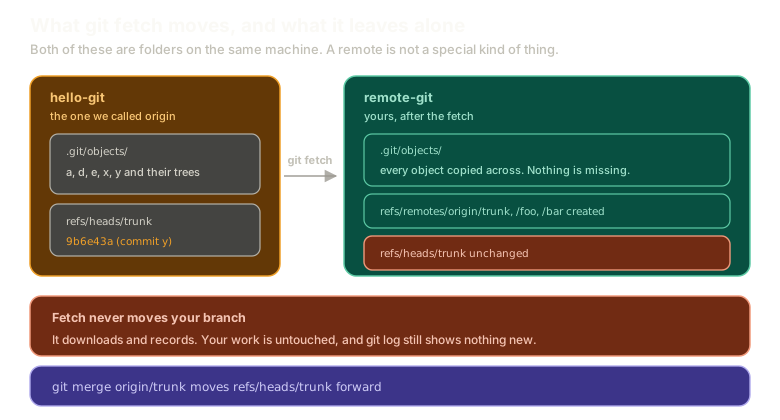 Expandhello-git on the left with its objects and trunk pointing at commit y. On the right, remote-git after a fetch: every object copied across and refs/remotes/origin/ created, but refs/heads/trunk left unchanged, with a note that git merge origin/trunk is what moves it.
What Fetch Actually Did
This is the distinction that makes the rest of the chapter make sense.
Fetch downloads objects and updates remote-tracking refs. It does not touch your branches.
Everything arrived. All the commits, all the trees, all the blobs, sitting in your objects/ directory. Git also recorded where each of the remote's branches was pointing, under refs/remotes/origin/.
What it did not do is move refs/heads/trunk. Your work is your work, and fetch will not rewrite it underneath you.
You can prove the data is there:
git log --oneline origin/trunkgit log takes any ref, including a remote-tracking one. There is the whole history: y, x, e, d, a, and whatever you committed last.
Cross-check it against the source:
cd ../hello-git && git log -1 --oneline && cd ../remote-gitSame SHA. The same commit now exists in two repositories, which is distributed version control doing the one thing it promises.
Seeing What Came Down
git branch -aThe -a means all. Anything prefixed remotes/ is a remote-tracking branch, and everything else is local.
Right now you have no meaningful local branches and a full set of remote ones. That asymmetry is the visual version of what fetch does.
Now Move Your Branch
The commits are local. Your branch just does not point at them yet, and that is an ordinary merge:
git merge origin/trunkgit log --onelineYour trunk now points where the remote's trunk points.
Nothing exotic happened. origin/trunk is a ref like any other, and merging a ref is merging a ref. Because your trunk had no commits of its own, there was nothing to diverge from and it fast-forwarded.
That is also why pulling into a main line you never commit to directly always says fast-forward. Nothing on your side ever moved.
What This Sets Up
Fetch then merge is two commands you will run together constantly, which is a strong hint that git has a shortcut.
Next: git pull and why it needs tracking, where that shortcut fails on the first attempt for a reason worth understanding.
The Essentials
- A remote is a copy of the repository somewhere else, and that somewhere can be a folder on your own machine.
git remote add <name> <location>takes an SSH address, a URL, or a path.originis a convention, and when you have a fork, your fork isoriginand the real project isupstream.git remote -vshows the locations, plaingit remotedoes not.- Fetch downloads objects and updates
refs/remotes/, and never moves your branches. git log origin/trunkworks, because a remote-tracking branch is just a ref.git branch -alists remote-tracking branches alongside local ones.
Further Reading and Watching
- Git Remote Tracking Branches Explained for Beginners: what the refs under
remotes/are and how they relate to your local branches. - Working with Remotes: the Pro Git chapter covering adding, inspecting, renaming, and removing remotes.
Keep reading