The Git Manual Is Already On Your Machine
Git ships with a complete manual for every command it has. The reason almost nobody reads it is that nobody teaches you how to move around inside it.
For years, my workflow for any git question I could not answer had a step in it I never once questioned.
Open a browser.
It took me an embarrassingly long time to notice that the answer was already sitting on my machine, offline, more accurate than the blog post I was about to read, and about four keystrokes away.
Git Has Around 147 Commands, and You Need About 13
Type git in a terminal and hit tab a few times. If your shell does completion, it will offer you somewhere around 147 possibilities.
That number is worth sitting with for a second, because it explains why git feels bottomless. It also explains why most people top out at five commands and treat everything past them as folklore.
Here is the part nobody says out loud: you never need most of those 147. Roughly thirteen commands, properly understood, will carry you through nearly everything a real job throws at you.
The last one percent of git is genuinely hard. It is also almost entirely optional. The goal is not completeness, it is being good enough that git stops feeling like a slot machine.
The Manual Is Not on the Internet
man is the manual system on any Unix-like machine. Every command that ships with your system ships with its own page, and git is no exception.
The one that explains the system itself is man man. That is not a joke, it is the actual entry point:
man manGit's pages follow a naming convention worth knowing. They are not man git commit, they are hyphenated:
man git-commit
man git-rebase
man git-config
Type man git- and press tab, and your shell will list every git page installed. This is the whole reference, on your laptop, working at 30,000 feet with the wifi off. No tab with sixteen results, no answer written for a version of git from 2014.
Why People Bounce Off man Pages
I think the real reason man pages have a bad reputation has nothing to do with the writing.
It is that you open one, and you cannot move.
The scrollbar is missing, your arrow keys feel useless, and you have no idea how to search. So you hit q, go back to the browser, and never try again. That is a navigation problem being mistaken for a documentation problem.
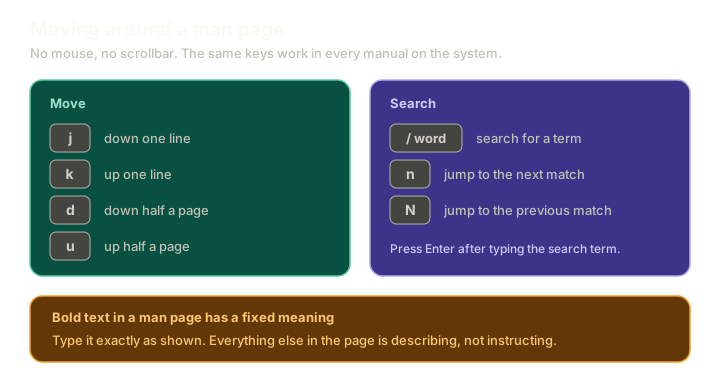 ExpandReference chart of man page navigation keys: j and k move one line, d and u move half a page, forward slash searches, n and capital N jump between matches, plus a note that bold text means type it exactly as shown.
Six keys is the entire skill:
jmoves down one line,kmoves up one linedgoes down half a page,ugoes up half a page/followed by a word searches the pagenjumps to the next match,Njumps to the previous one
That is it. That is the whole barrier that has been standing between most developers and every piece of documentation on their own machine.
If those keys look familiar, they should. Vim did not invent them. The pager you are reading man pages through has worked this way for far longer, which is a small piece of evidence that Vim's key choices were less arbitrary than they get credit for.
A man Page Is Written in a Notation
Here is the thing that changed how I read documentation, and it is a five second lesson.
In a man page, formatting is not decoration. It is instruction.
Bold text means something specific: type it exactly as shown. Not "roughly this", not "something like this". Exactly this, character for character.
Open man man itself and you will see it demonstrated. Something like man -k appears in bold, and that is the page telling you those three characters are literal. Type man -k and it works, because bold meant exactly what it said.
You can verify that yourself rather than taking my word for it. Open man man, press /, type bold, and press Enter. The first result says it plainly: bold text is to be typed exactly as shown.
The rest of the page follows the same logic. Italics, square brackets, and trailing ellipses each carry their own meaning about what is required, what is optional, and what can repeat.
Every visual choice on that page is load-bearing. Once you know that, a synopsis line stops being a wall of symbols and starts being a precise description of what you are allowed to type.
The Habit Worth Building
You do not have to be good at man pages. You have to be good enough.
Good enough means: when git surprises you, your first move is man git-something rather than a browser tab. You will not always find the answer there. man git-tag in particular is a strange read, and some pages will send you to the internet anyway.
But the default matters. Reaching for the manual first is the difference between learning git and collecting git trivia.
Everything in this series can be tried out for real in the git playground, which runs a genuine git object store in the browser with nothing to break.
What This Sets Up
Knowing how to look things up is not the same as knowing what to look up. That takes understanding what git actually is, and it is stranger than the five commands most people use suggest.
Next comes why git being distributed changed how teams work, and after that, what a commit really stores, which is where most people's mental model turns out to be wrong.
The Essentials
- Git has around 147 commands. About thirteen make you genuinely good, and the last one percent is optional.
- The full manual is already installed, offline and version-accurate, via
man git-<command>. - Six keys are the whole navigation skill:
j,k,d,u,/, andn. - Bold text in a man page means type it exactly as shown, and every other formatting choice is equally deliberate.
man manexplains the notation, so you never have to remember it, only where to look it up.
Further Reading and Watching
- Using Linux Man Pages | Command Line Tips: a short walkthrough of navigating and searching manual pages from the terminal.
- Git Reference Manual: the same content as the man pages, in a browser, for when you want to link someone to a specific section.
Keep reading