Interactive Rebase And Squashing
Commit as often as you like while working, then turn the mess into one reviewable commit before anyone sees it. Interactive rebase has many options and you need one.
Ours and theirs closed out conflicts. There is one more thing rebase does, and it is the one you will actually reach for weekly.
Interactive rebase has a long list of capabilities. In practice, squashing is nearly all of it.
Editing commit messages, reordering, dropping commits: all available, all rarely needed. I have never dropped a commit. The option is there and it stays there.
Why This Matters
The workflow it unlocks is worth naming, because it changes how you commit.
Commit as often as you want while working. Every checkpoint, every experiment, every "this compiles now". Messages like wip and fix typo are fine, because nobody will ever see them.
When the work is done, collapse the whole lot into one commit with a real message and push that.
You get the safety of frequent commits and the cleanliness of one. Those normally trade off against each other, and this is the thing that gets you both.
A useful trick within it: start each throwaway message with something like squash me. Later, scanning the log for where your work began takes one glance instead of counting commits.
Many teams do this at the other end too, with a hosting service performing a squash merge automatically when a pull request lands. Same outcome, decided by policy rather than by you.
Set It Up
Three quick commits on top of what you already have:
echo "1" >> README.md
git add README.md
git commit -m "1 to the end"

echo "2" >> README.md
git add README.md
git commit -m "2 to the end"

echo "3" >> README.md
git add README.md
git commit -m "3 to the end"git log --oneline -4Three commits nobody needs to read individually.
The Command
git rebase -i HEAD~3HEAD~3 is a commit-ish: a commit, or something that resolves to one. That is real git terminology, not slang, and it has a sibling called tree-ish for anything that resolves to a tree. HEAD~1 is one commit back, HEAD~3 is three back.
And notice the number makes sense given what rebase does. HEAD~3 is the commit just before your three, so git goes there and replays the three on top. Exactly the normal rebase, except you get to say how each one is replayed.
The Todo List
Git opens a file listing your commits, each prefixed with pick, plus a comment block explaining the available actions.
pick 4a1c9f2 1 to the end
pick 8d0b73e 2 to the end
pick 1fe4c60 3 to the end
Oldest first. The reverse of git log, because this is replay order.
To squash all three, change the second and third to squash, or just s:
pick 4a1c9f2 1 to the end
squash 8d0b73e 2 to the end
squash 1fe4c60 3 to the end
Squash melds a commit into the one above it. So the second folds into the first, and the third folds into that result. One commit.
The first line cannot be a squash. There is nothing above it to meld into.
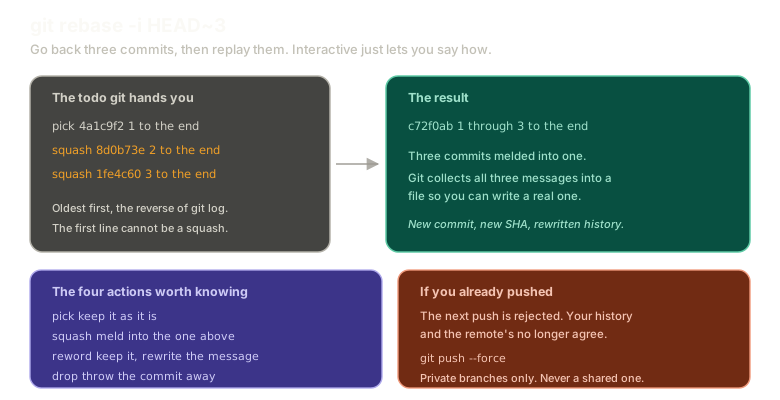 ExpandThe todo list git hands you with three commits, the first picked and the next two marked squash, producing a single resulting commit, alongside the four actions worth knowing and a note that pushing after this requires --force.
Save and close. Git then opens a second editor containing all three commit messages, so you can write one real message in place of them:
1 through 3 to the endgit log --onelineThree commits became one.
Try it here, with an editable todo list instead of a text editor:
Rebasing
Interactive rebase
Start an interactive rebase onto trunk, mark the last two as squash, and run it.
Type a command, or click a suggestion below. `help` lists what works.
The Four Actions Worth Knowing
pickkeeps the commit as it issquashmelds it into the commit aboverewordkeeps the change and lets you rewrite the messagedropthrows the commit away
There are more. You will not need them for a long time, and the comment block in the todo file lists them whenever you do.
This Is History Rewriting
Nothing new here, but it is worth connecting explicitly.
Those three commits are gone. A new commit exists with a new SHA, containing their combined changes, because a commit's identity comes from its contents.
Which means if you already pushed them, your next push is rejected. Your history and the remote's no longer agree.
git push --forceThat says: my version is correct, discard yours.
Private branches only. Every warning from the rebase post applies in full. Force pushing a branch other people have based work on breaks all of them.
The Cycle Everyone Actually Runs
Since we are being honest about workflows, here is the real one, embarrassment included.
Make a pile of small commits. Squash them into one. Push. Add reviewers.
Then look at your own commit in the review interface with fresh eyes and immediately notice something stupid in it.
Fix it. Squash again, or amend. Force push. Hope nobody looked in the ninety seconds between.
Everybody does this. The tools support it because the workflow is universal, not because anyone planned it.
What This Sets Up
That is conflict resolution done: stashing, merge conflicts, rebase conflicts, recorded resolutions, taking sides, and squashing.
The final chapter is the tools that find things and undo things: searching history, bisect, revert, reset, worktrees, and tags.
The Essentials
- Interactive rebase does many things, and squashing is the one you will use.
- Commit freely while working, then collapse it into one commit before review.
git rebase -i HEAD~3goes back three commits and replays them, letting you say how.- The todo list is oldest first, and the first line cannot be a squash.
squashmelds a commit into the one above it, and git offers all the messages so you can write one.pick,squash,reword, anddropcover essentially everything.- Squashing rewrites history, so a pushed branch needs
--force, and that means private branches only.
Further Reading and Watching
- Git Rebase --interactive: EXPLAINED: the todo file, the available actions, and what each one does to the resulting history.
- Rewriting History: the Pro Git chapter on interactive rebase, amending, and the tools for reshaping commits before they go public.
Keep reading